Call us today (325) 600-4396

May 1, 2026
How to Give Someone Access to Google Ads (Step-by-Step Guide)
By Adrian Lasala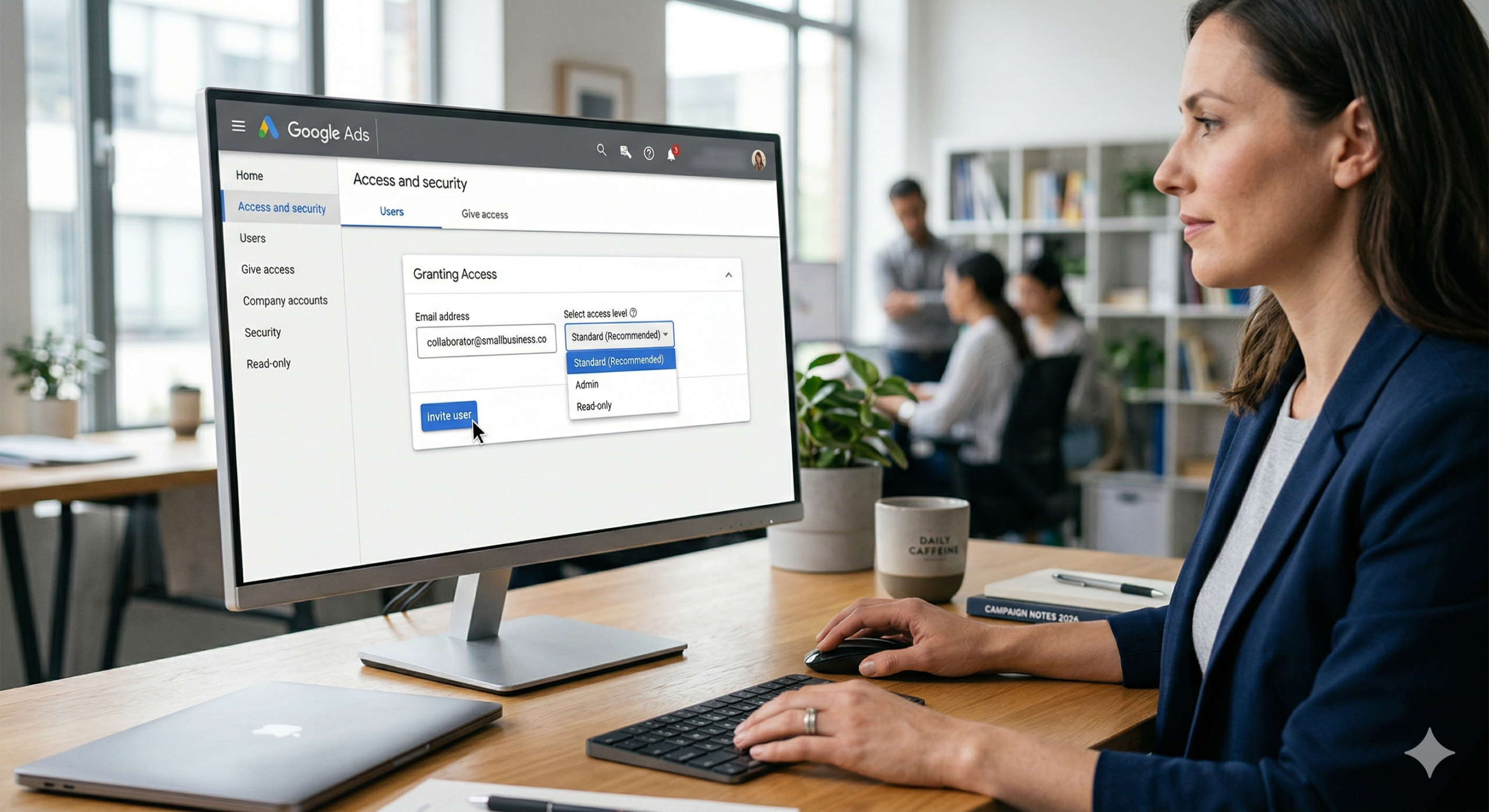
Back To Blog
Intro
In the digital advertising world, access management is as important as the ads themselves. Proper delegation ensures that your marketing partners can do their jobs while you maintain ultimate control over your billing and ownership. Google Ads uses an invitation-based system: you send an invite to their email, they accept, and they are in—no password sharing required.
Step 1: Navigate to Access and Security
Log in to your Google Ads account and locate the left-hand sidebar menu. At the very bottom, you will see a gear icon labeled Admin. Click Admin, and then select Access and security from the sub-menu that appears. This area acts as the control center for everyone who can view or edit your advertising data.
Step 2: Add a New User
Once you are in the Access and Security dashboard, you will see a list of people who currently have access to your account. To add a new team member or agency partner, click the blue plus (+) button located above the user list. This will open the invitation window where you can define their role.
Step 3: Enter Details and Select Access Level
Enter the email address of the person you want to invite and carefully choose their access level. In 2026, Google provides several roles to fit different needs. Email-only access is best for those who just need reports, while Billing access is restricted to payment management. Read-only allows someone to see everything without the ability to change campaigns. For most agencies and freelancers, Standard access is the preferred choice as it allows them to manage ads and view reports without granting them the power to add or remove other users. Finally, Admin access gives full control over the account, including user management and account settings.
Step 4: Send and Confirm
Once you’ve selected the appropriate level for your partner, click Send invitation. The recipient will receive an automated email from Google containing an “Accept” link. They must click this link to gain access to the dashboard. Until they complete this step, their status in your user list will show as “Awaiting response,” and they will not be able to see your campaign data.
Conclusion
Managing access is the first step toward a successful professional partnership. By following this process, you keep your account secure, your billing protected, and your data visible only to the people who need it. Remember to review this list every few months and revoke access for anyone no longer working on your account to maintain a clean and secure digital environment.
Ensuring your development team has the right level of oversight is crucial for implementing high-level security measures and preventing the hidden risks associated with budget-friendly design. CLICK HERE
Frequently Asked Questions (FAQ)
Does the person I invite need a Gmail address?
Yes, or an email address linked to a Google Account. If they don’t have one, Google will prompt them to create a Google Account using their existing work email when they accept the invite.
Can I give someone access to just one specific campaign?
No. Google Ads permissions are account-wide. If you need someone to only see certain data without making changes, grant them Read-only access.
What is a “Manager Account” (MCC) request?
If an agency asks for your 10-digit Customer ID, they are trying to link your account to their Manager Account. In this case, you don’t invite them; they send a request to you. You will find this under the Managers tab in the “Access and security” section.
Can I change someone’s access level later?
Absolutely. You can go back to Admin > Access and security at any time to upgrade, downgrade, or “Revoke” a user’s access entirely.
Contact Us Today
Ready to Amplify Your Marketing?
Let's create a digital marketing strategy that drives real results for your business.
Get Free Consultation